Azure Internet of Things Services.

Azure Internet of Things (IoT) is a comprehensive collection of Microsoft-managed cloud services, software development kits (SDKs) and edge components. It empowers you to connect, monitor, and control your IoT assets at scale. In simpler terms, an IoT solution consists of devices that communicate with cloud services. Azure Internet of things also means the ability for devices to gather information and then relay the information for data analysis.
IoT isn’t just about connecting devices to the internet, it’s about creating meaningful solutions by leveraging data and connectivity.
Components of Internet of things (IoT).
The Internet of Things (IoT) comprises of various components that work together to create a connected ecosystem. Here are the key components:
Devices and Sensors: These are physical objects equipped with sensors that connect to the internet. For example, a pressure sensor on a remote oil pump
Connectivity: IoT devices use various communication protocols like Wi-Fi, cellular networks (e.g., NB-IoT, LTE-M), Bluetooth, Zigbee, or LoRa to transmit data.
Device Provisioning Service: Simplifies device onboarding and provisioning at scale.
Azure Digital Twins: Models real-world entities as digital representations, enabling simulation, monitoring, and analytics.
Other Cloud Services: Azure Data Explorer, Azure Storage, and Azure Functions can be part of your IoT solution.
Azure IoT Hub: This is a managed service for device-to-cloud and cloud-to-device communication. It handles device registration, telemetry, and security. Azure IoT hub is also a managed service hosted in the cloud that acts as a central message hub for bi-directional communication between IoT applications and the devices it manages.
Azure IoT Central: This is an IoT application platform as a service (PaaS) that simplifies the development, management, and maintenance of IoT solutions. below are what it offers:
Quick Connectivity: Easily connect and manage devices at scale, ensuring seamless communication between IoT devices and the cloud.
Centralized Management: Effortlessly reconfigure and update devices, streamlining device management tasks.
Data Visualizations and Analysis: Gain insights from IoT data through custom dashboards and exploration experiences.
Extensibility: Bridge business applications with IoT data, turning insights into actionable outcomes.
Azure Sphere: This is a comprehensive solution for building and connecting secured IoT devices. It covers three main components:
Secured Microcontroller Unit (MCU): This hardware component provides a root of trust and forms the foundation for secure communication.
Linux-Based OS: The Azure Sphere OS runs on certified chips and connects to the Azure Sphere Security Service. It ensures secure device operation and facilitates over-the-air updates.
Cloud Service: The Azure Sphere Security Service handles updates, monitoring, and security enhancements for connected devices.
step to step guide on how to build internet of things service on Azure Microsoft.
Step one:
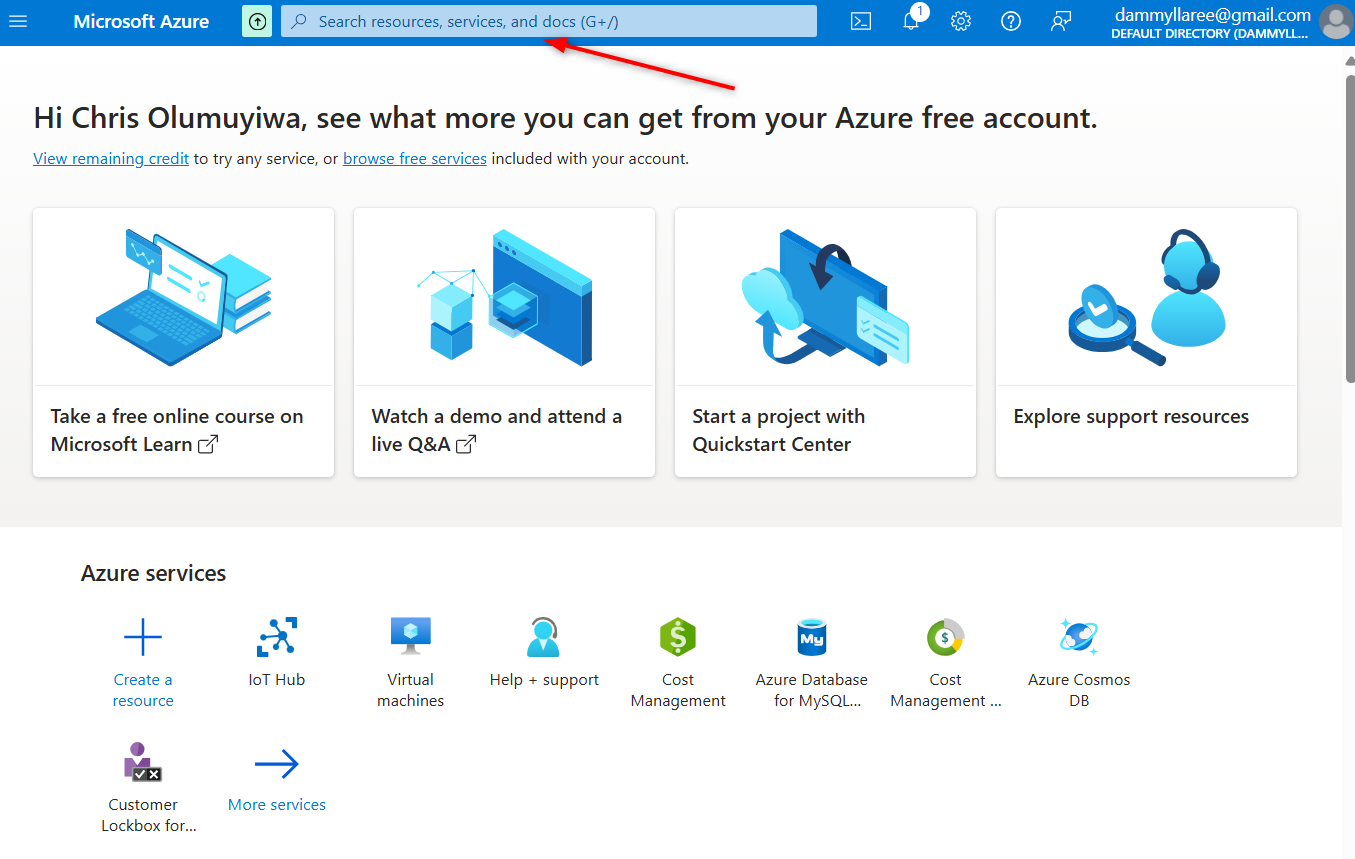
Login to your subscribed account on Microsoft Azure portal service. Click on the search area and type IoT hub
Step Two:
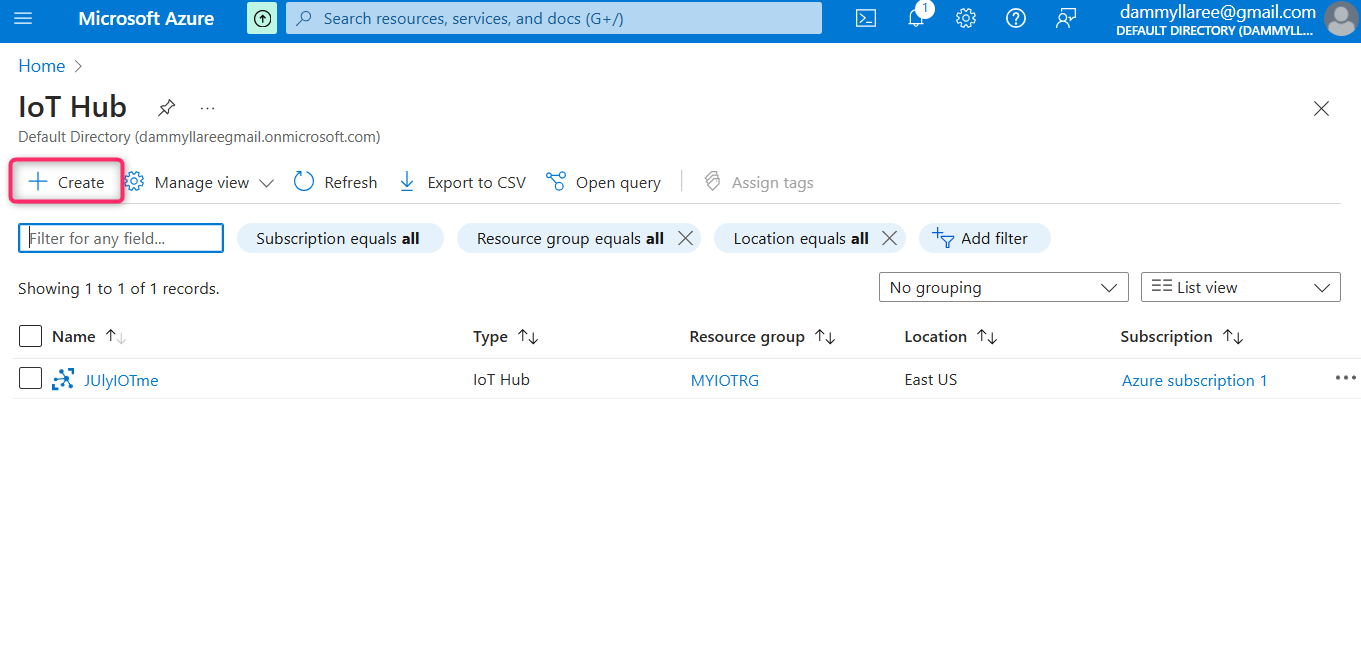
In the IoT hub, click on create to create an IoT
Step Three:
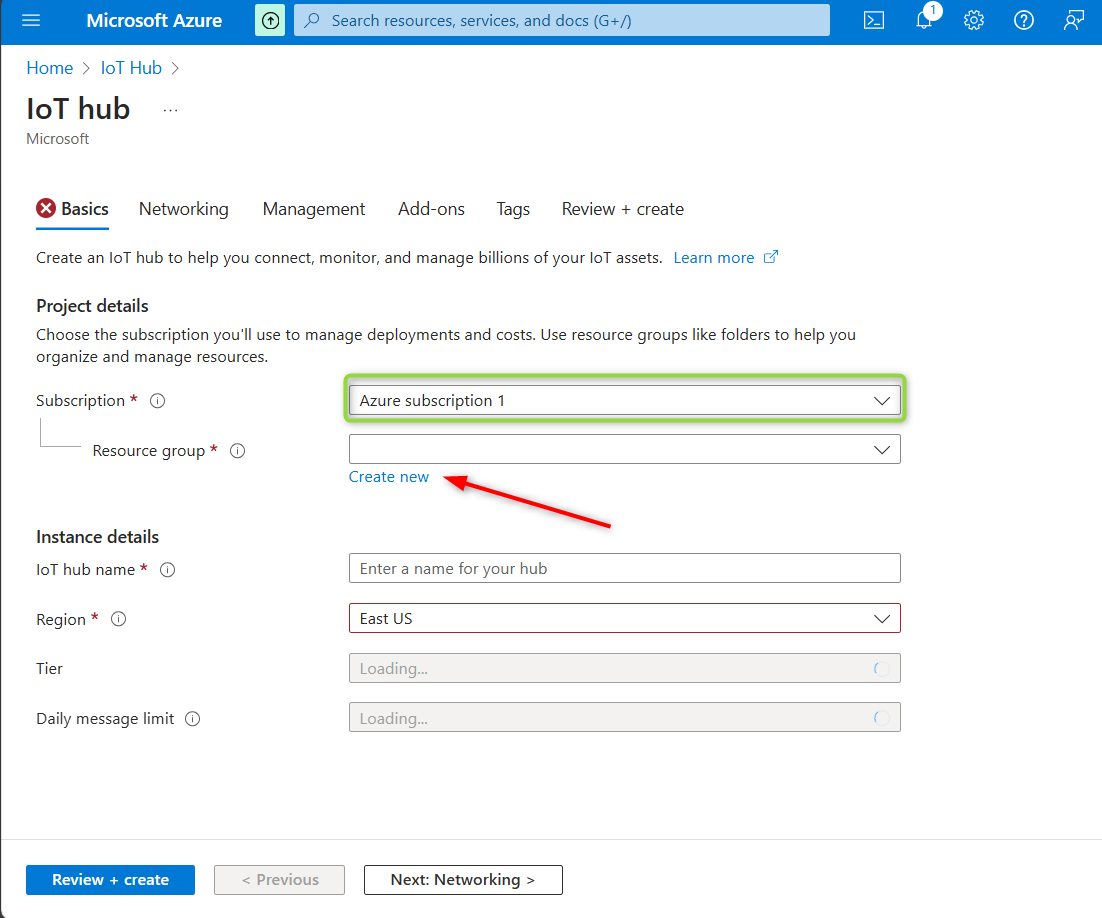
In the basics, fill in the information on the project details.
Select the subscription you are on
Create a Resource group for the IoT
Step Four:
Fill in the information on the Instance details.
give your IoT hub a suitable name.
Select the region you would like your IoT hub to be stored on the cloud.
Leave the rest of the information as pre-filled.
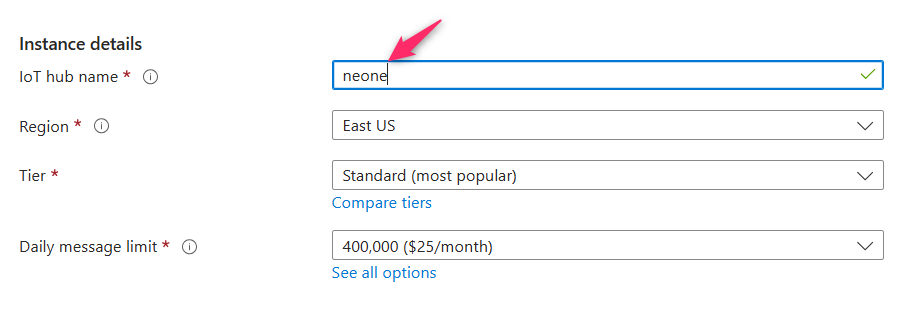
Step Five:
Review the information you supplied and wait for it to succeed, then create.
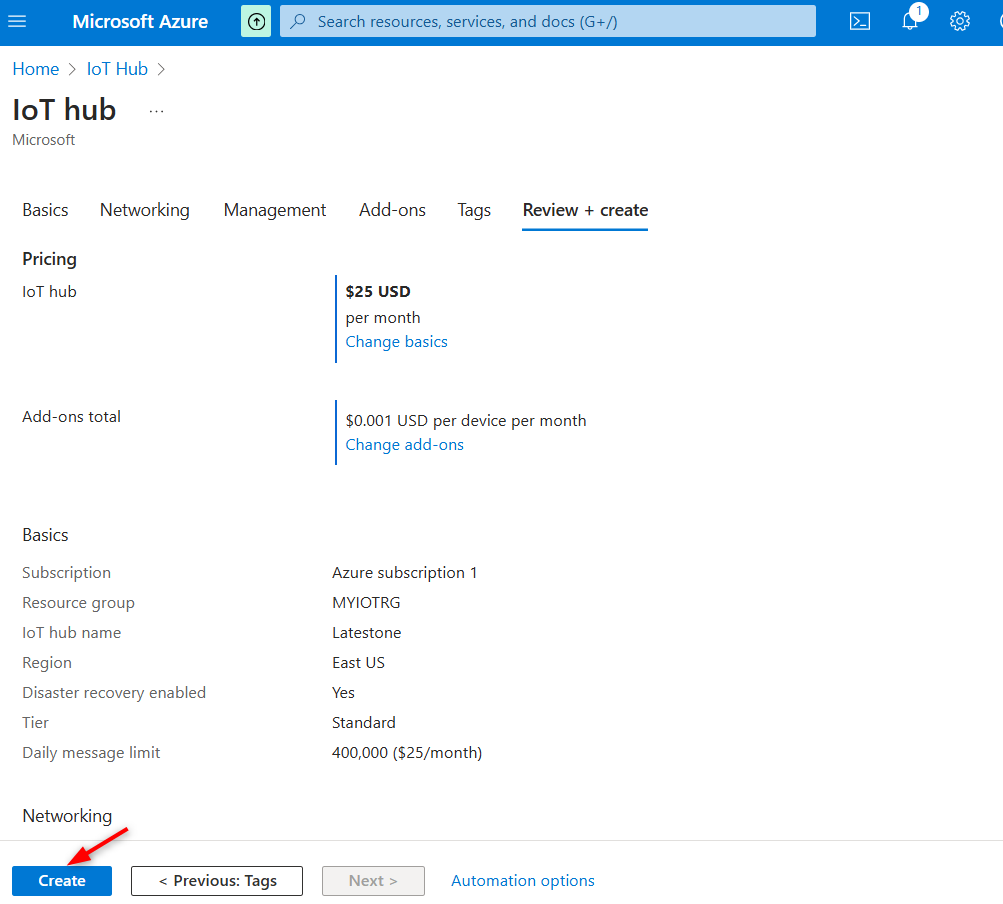
Step Six:
Wait for your deployment to complete, click on "go to resource" to access your newly created IoT hub.
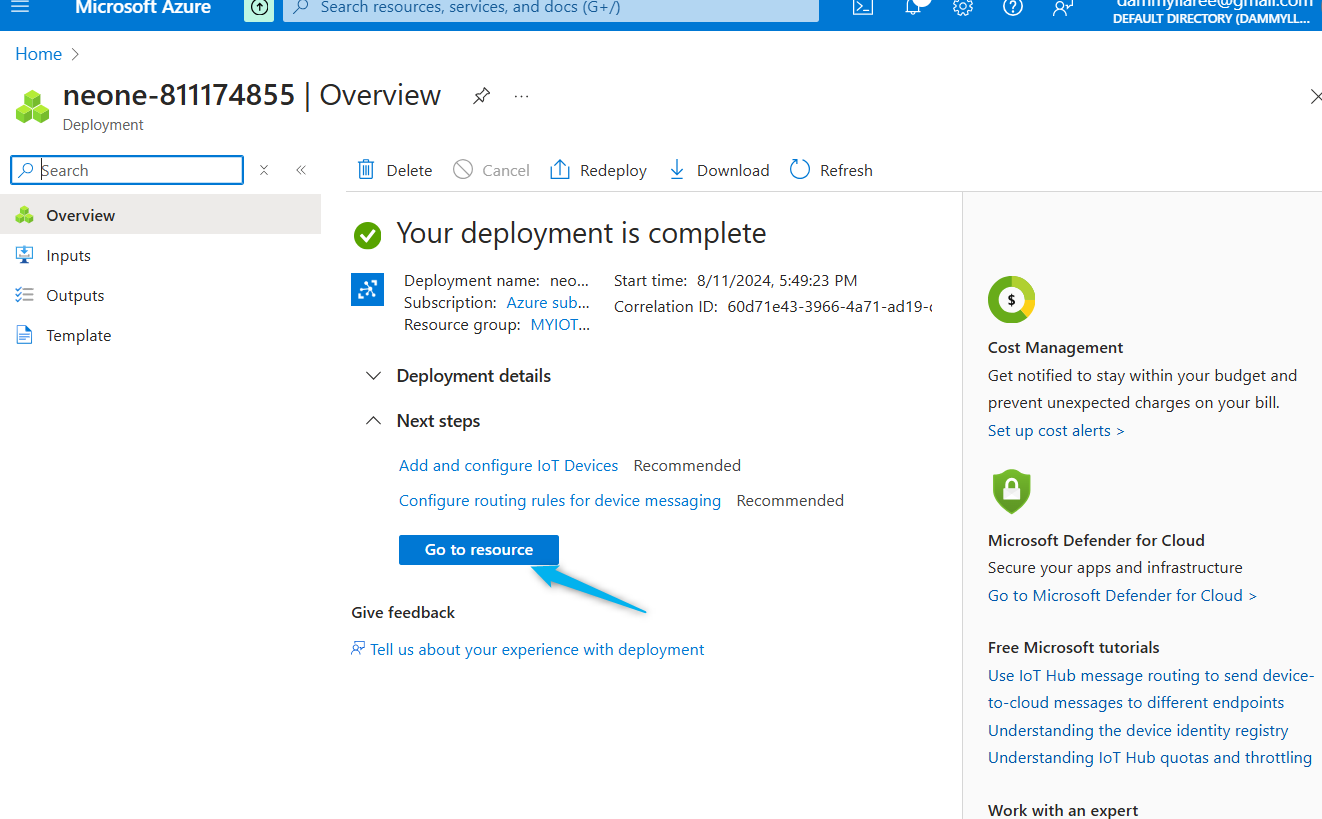
Step Seven:
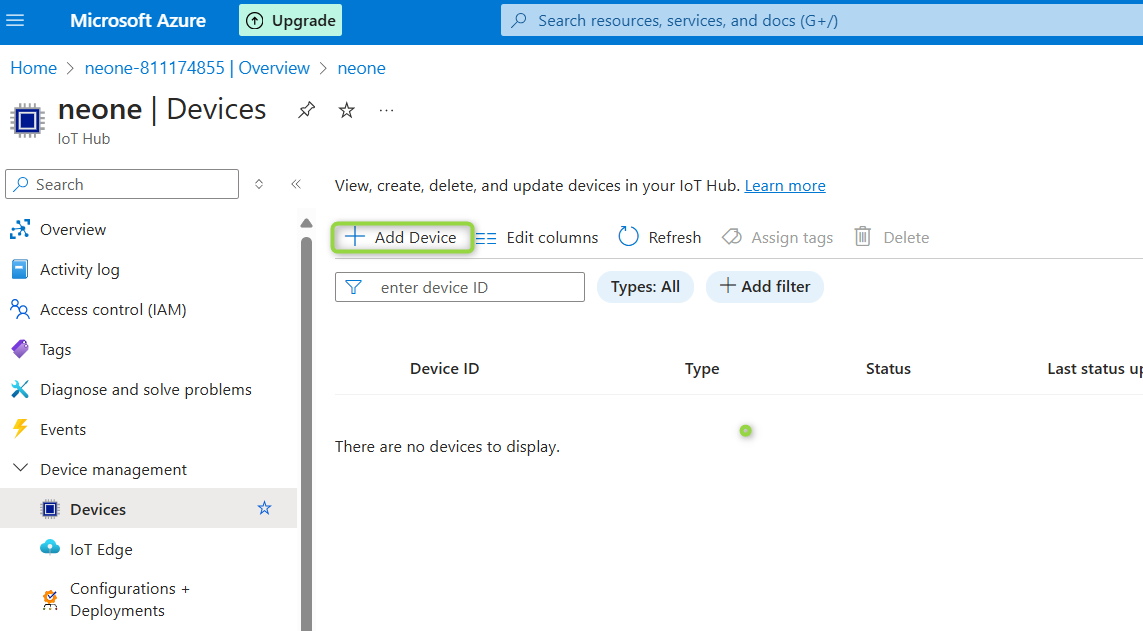
In your newly created IoT hub, go to the left side of your page and select device management. After which you click on devices.
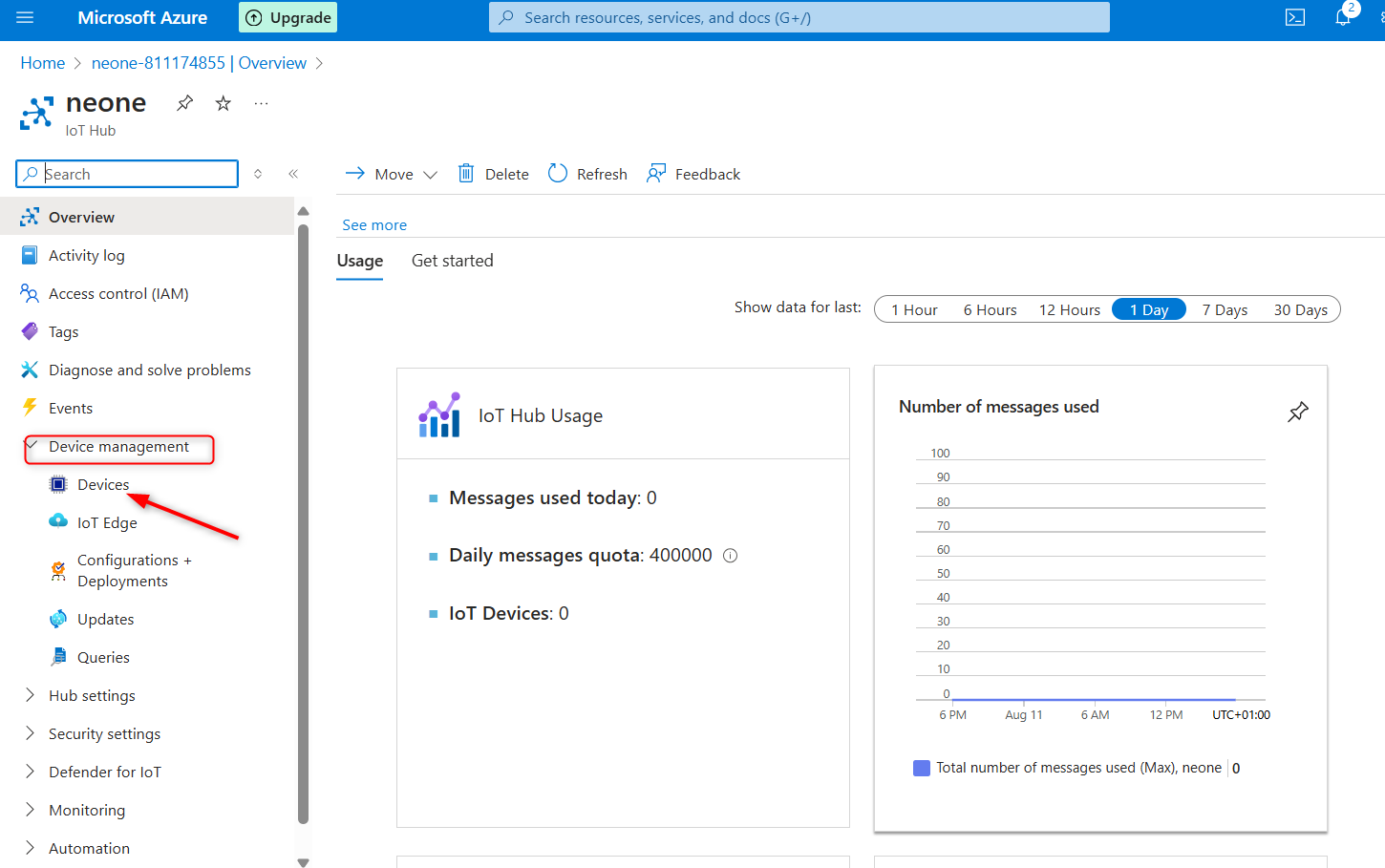
Step Eight:
Select " Add Device"
Step Nine:
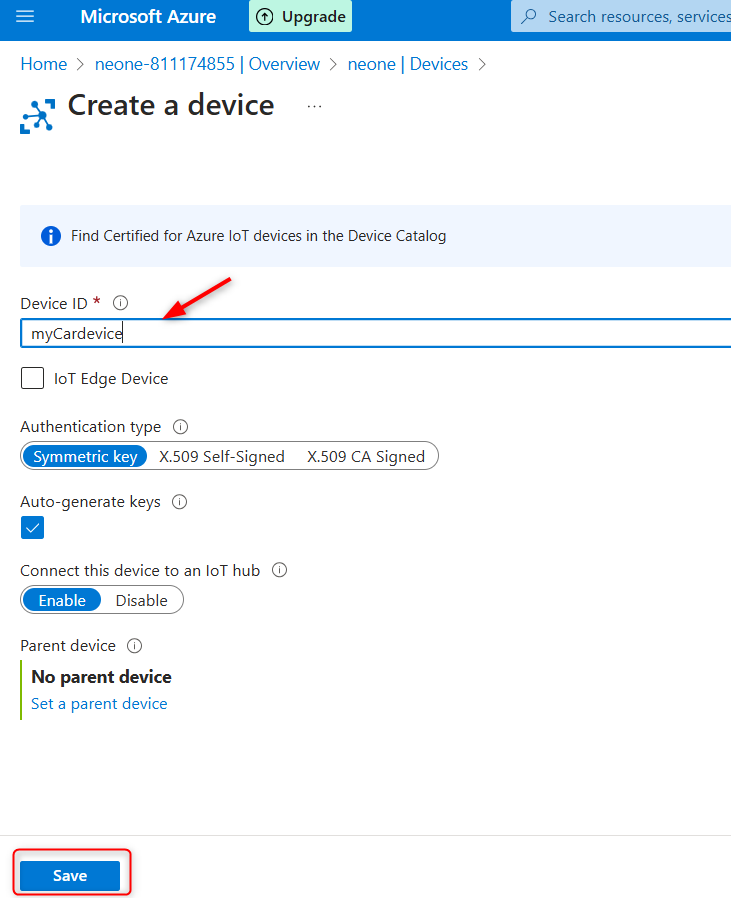
At the create device page, fill the "Device ID" with your choice name.
Scroll down and click on save.
Step Ten:
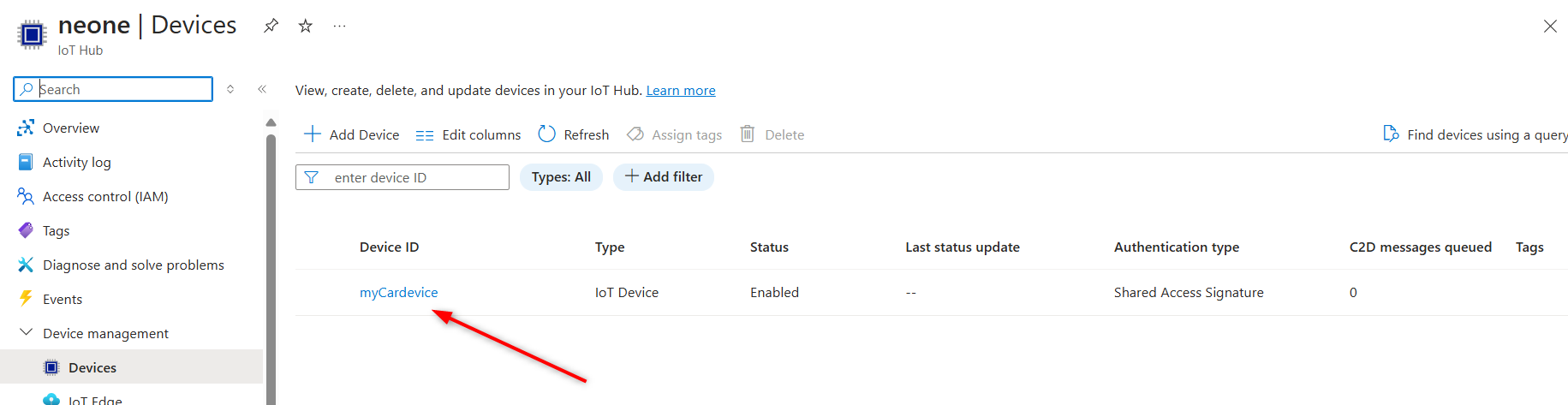
Click on your newly added device to access it.
Step Eleven:
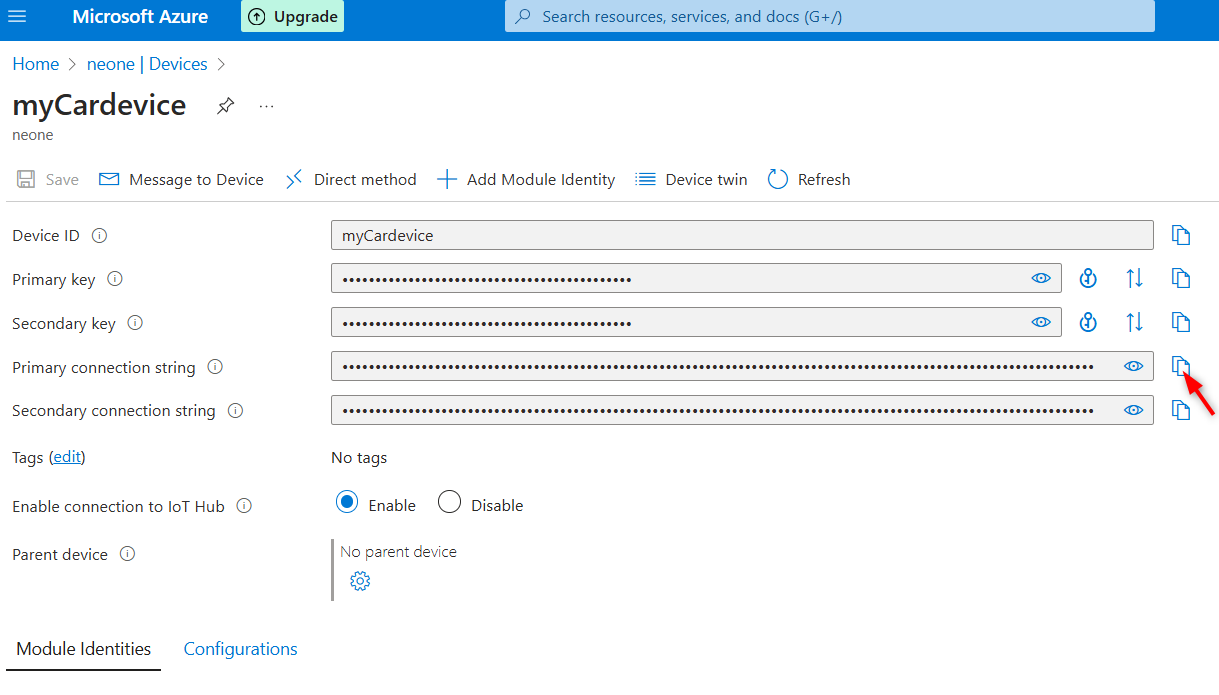
Copy your "primary connection string code" to clipboard
Step Twelve:
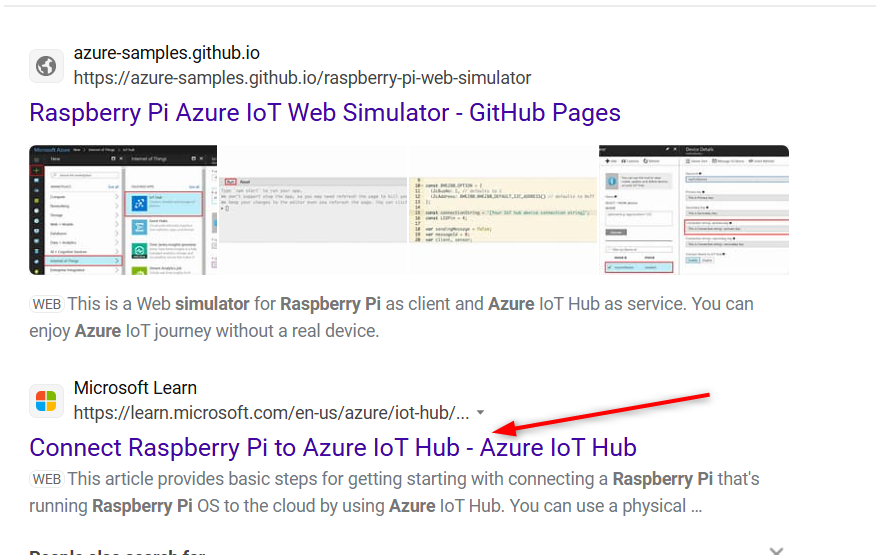
Open a new Tab on your browser and type "Azure Raspberry pi simulator".
Click on the Microsoft learn.
Step Thirteen:
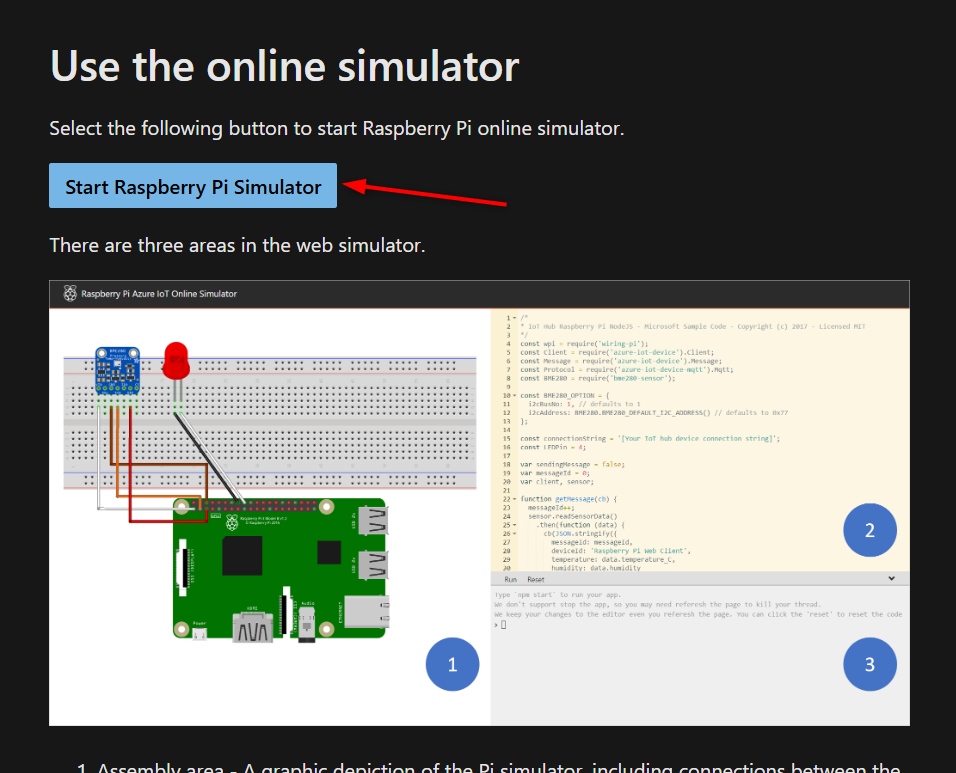
Click on the "Start Raspberry Pi Simulator"
Step Fourteen:
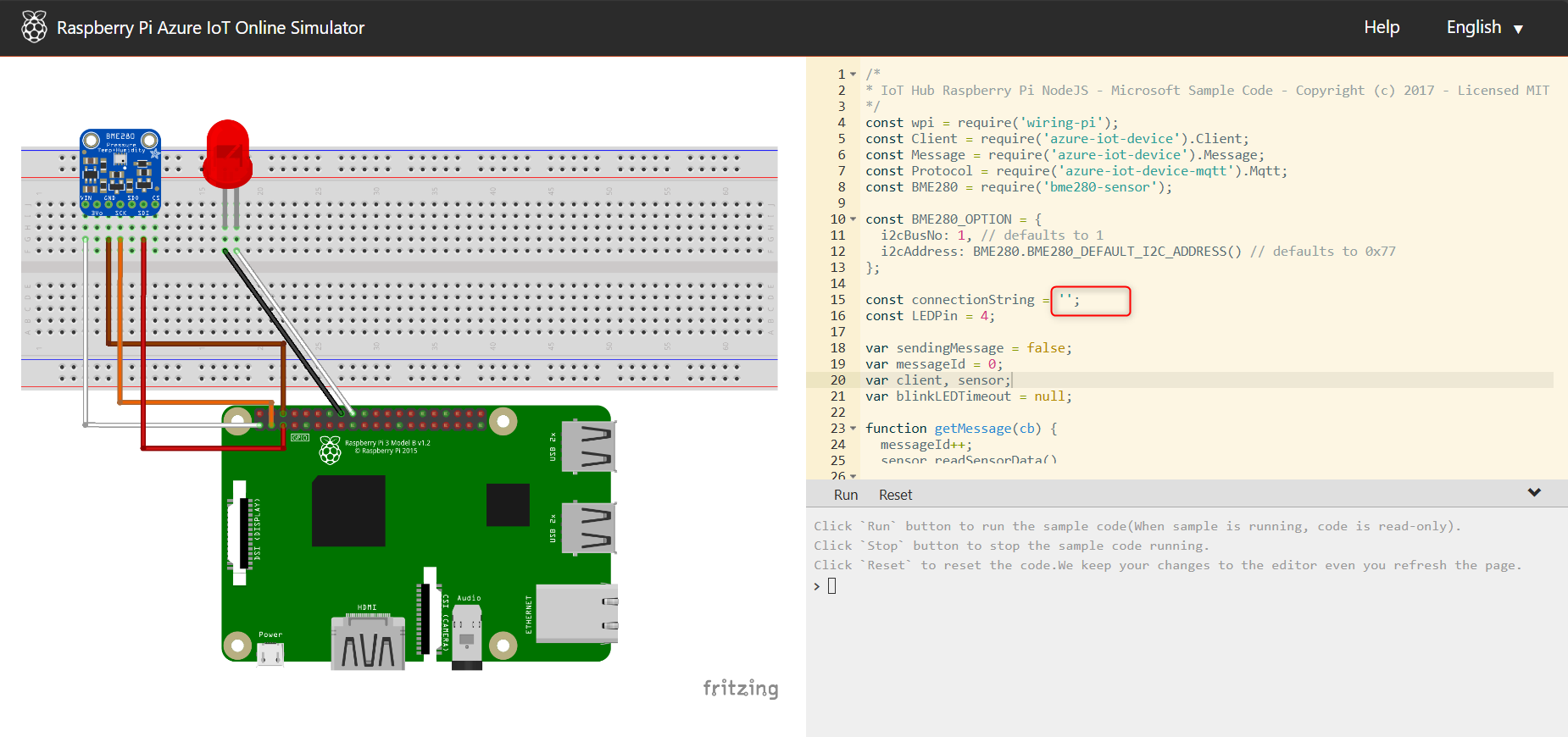
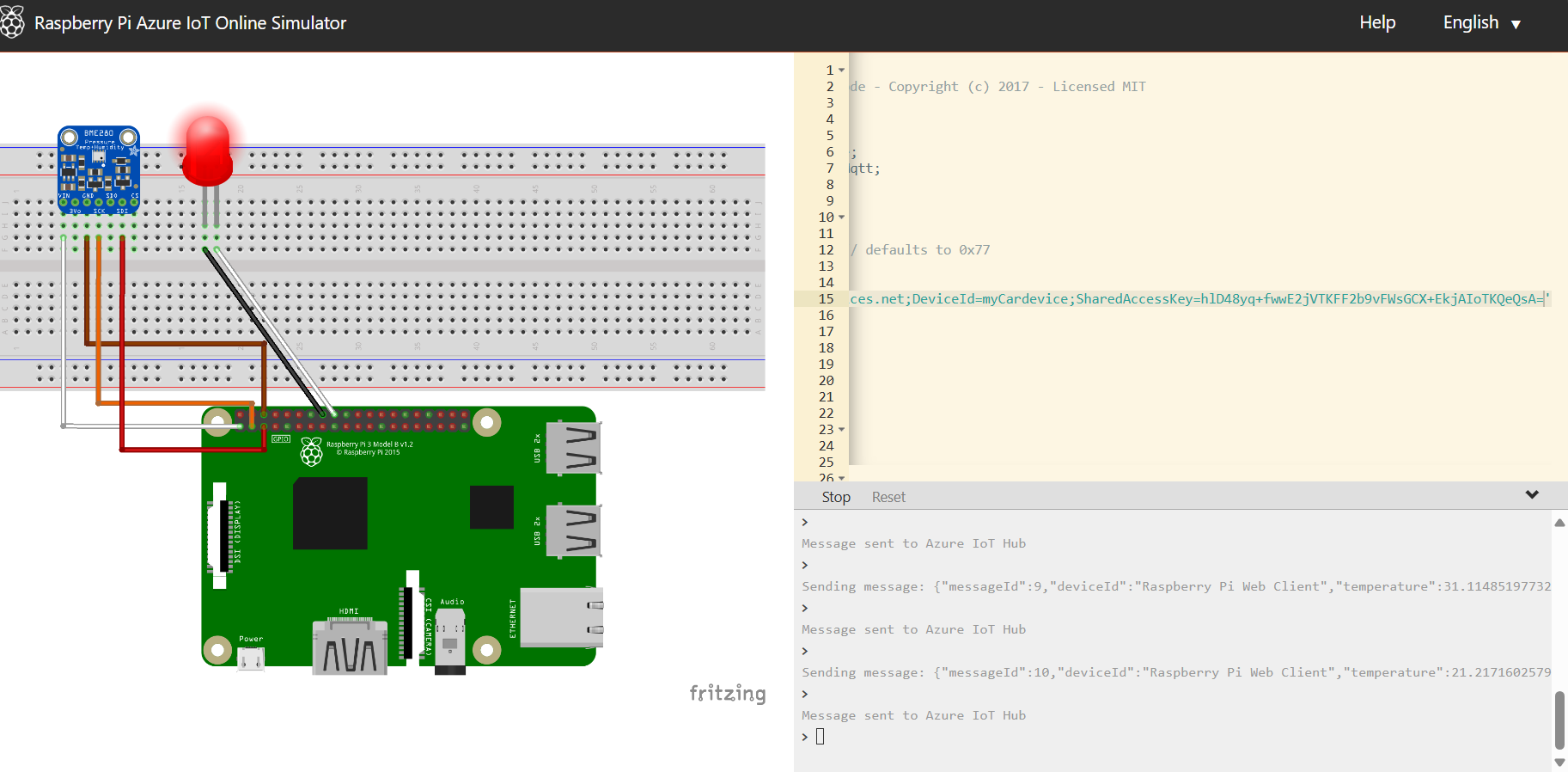
Go to the number "15" on your code page.
Clear the placeholder.
Input the copied "primary connection string" code
Step Fifteen:
Click on "Run"
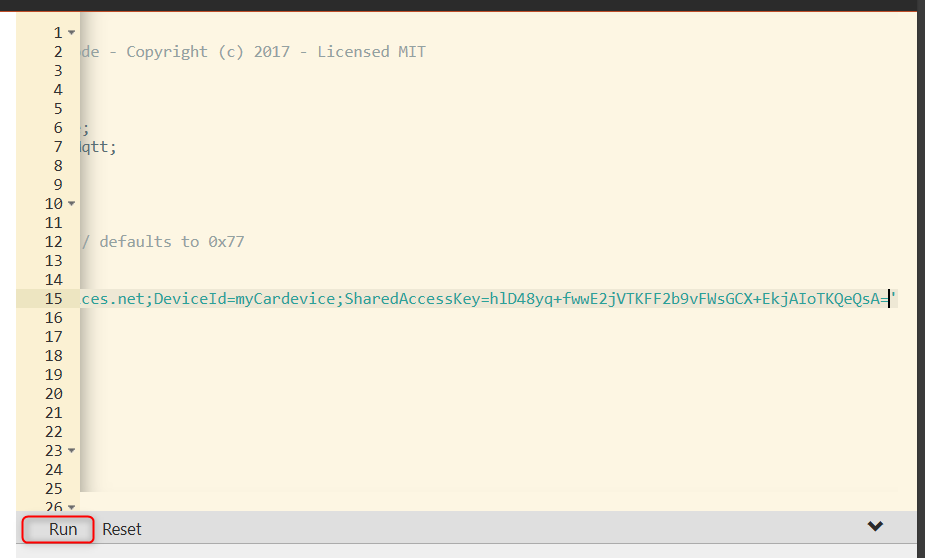
Your device starts running and sending message to your IoT hub.
Step Sixteen:
Return to your IoT hub page and refresh the page.
The IoT device is connected.
messages from the Raspberry pi Simulator are displayed below.
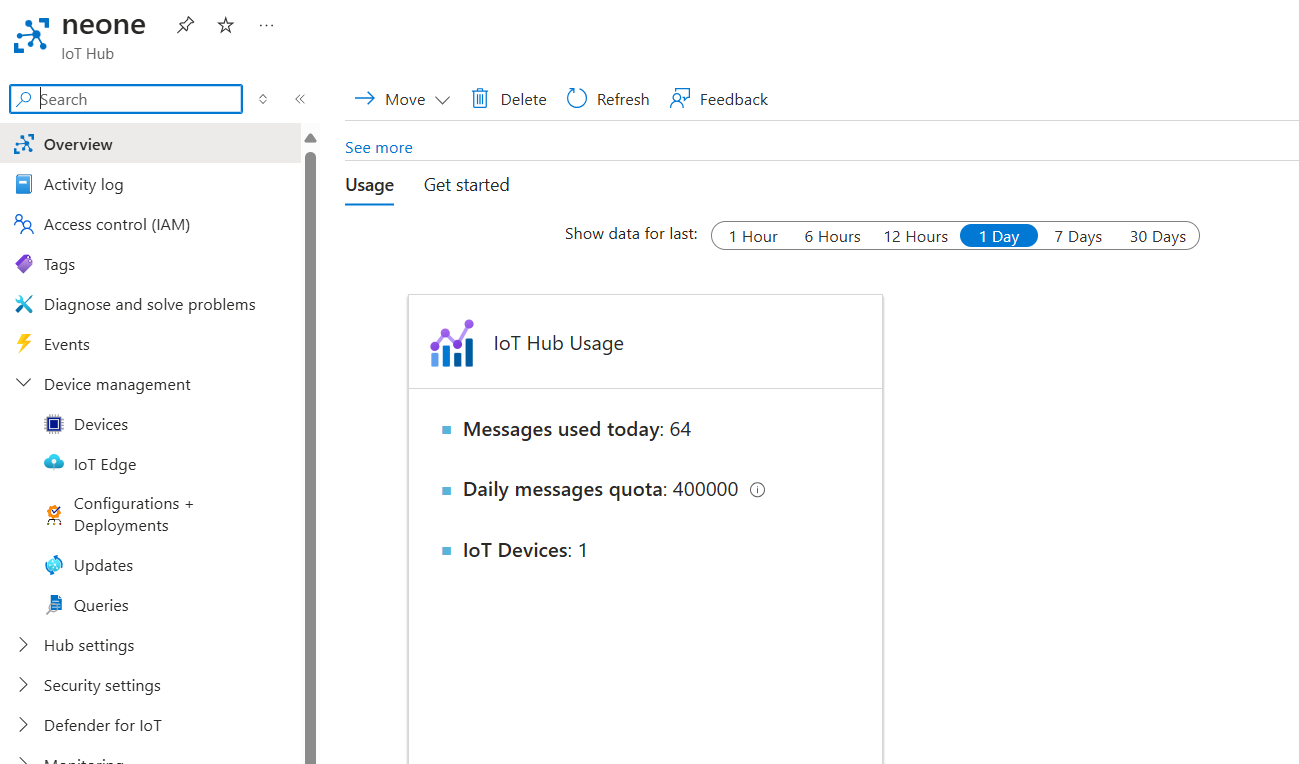
You have successfully created your IoT hub, added a device and connected the device to your hub using the raspberry pi simulator to send messages regarding your device.
Thank you for taking time to read and i hope the material is useful to you!